Posture
Desk Ergonomics in KL: Simple Setup Tips for Neck and Back Strain
Practical desk ergonomics for KL office and home workers, including chair, screen, laptop and movement tips for neck and back strain.
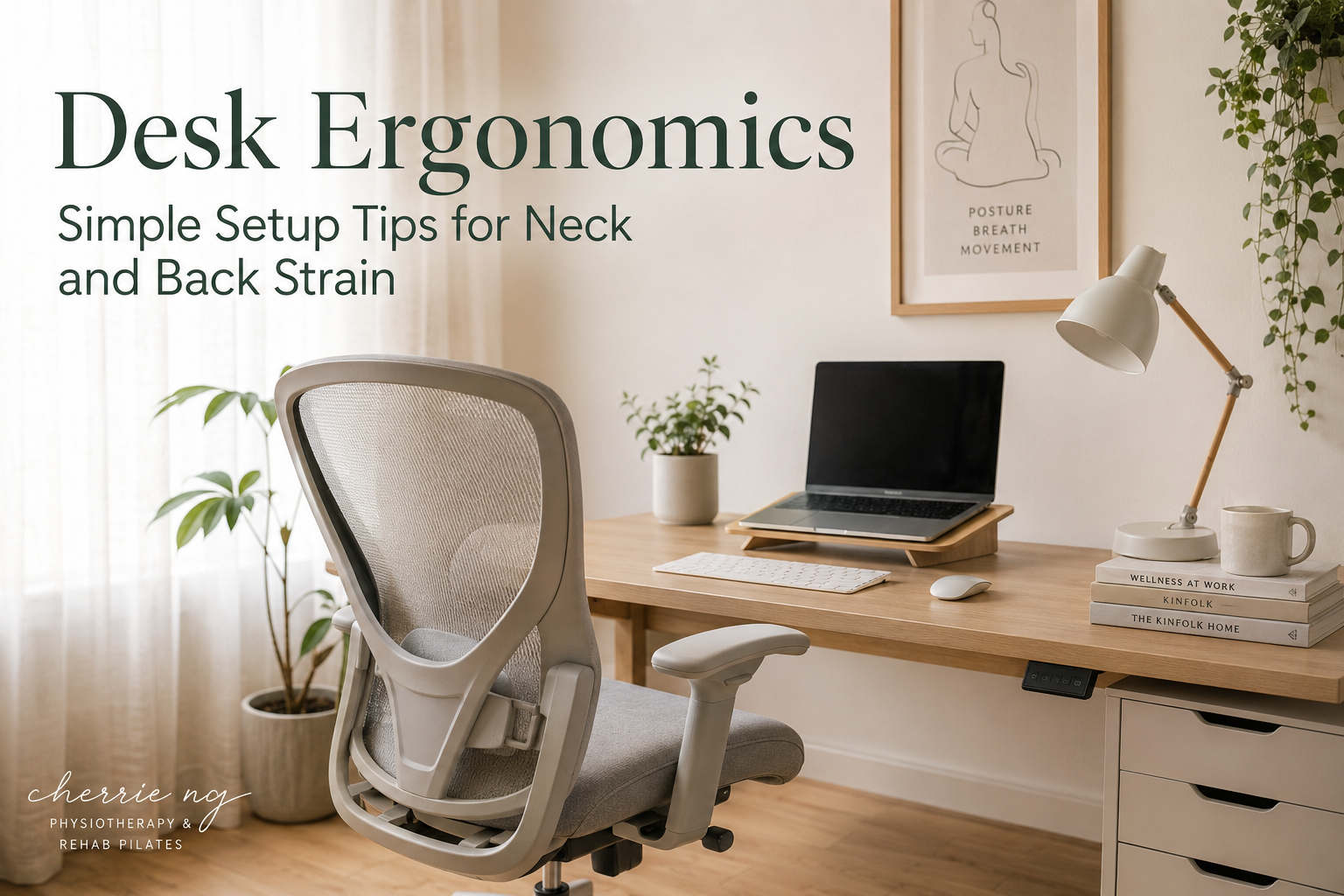
Good desk ergonomics means adjusting the workstation to fit your body and tasks—not forcing your body to hold one “perfect” posture. For office and home workers in Kuala Lumpur, a practical setup keeps frequently used equipment within easy reach, supports a comfortable screen position and makes it easy to change position during the day.
These changes may reduce unnecessary reaching or sustained awkward positions, but a new chair or monitor height is not a guaranteed cure for neck or back pain. Symptoms that persist, spread or worsen still deserve an individual assessment.
Does desk ergonomics really prevent pain?
Ergonomic adjustments can make computer work feel more comfortable, but the research does not support a simple promise that one ideal setup will prevent all neck, shoulder or arm problems.
A Cochrane review of 15 randomised trials involving 2,165 office workers found inconsistent evidence for physical ergonomic interventions. Evidence for supplementary breaks was very low quality, and ergonomic training did not clearly prevent upper-limb or neck symptoms. The review also noted that many studies were small or at high risk of bias. Cochrane review of ergonomic interventions for office workers
That does not make ergonomics pointless. It means setup should be treated as one part of a wider plan that may include movement, strength, workload, sleep, stress and symptom-specific care.
A simple desk ergonomics checklist
Start with the changes that reduce the most obvious effort. You do not need to buy every product labelled “ergonomic.”
1. Adjust the chair before the screen
Sit far enough back to use the backrest comfortably. Adjust the seat so your feet can rest on the floor or on a stable footrest, without the front edge pressing hard behind the knees.
Set the chair high enough that you can reach the keyboard while keeping the shoulders relaxed and elbows reasonably close to the body. If raising the chair leaves your feet unsupported, add a footrest rather than letting the legs hang.
The US Occupational Safety and Health Administration (OSHA) workstation checklist recommends lower-back support, feet supported by the floor or a footrest, relaxed shoulders, elbows close to the body and enough space under the desk. OSHA computer workstation evaluation checklist
These are starting points, not angles you must hold all day. A slightly reclined position may feel better for one task, while sitting forward briefly may suit another.
2. Place the main screen in front of you
Position the screen so you can read it without repeatedly leaning forward, looking far down or twisting to one side. OSHA suggests placing the top of the monitor at or below eye level and keeping the main screen directly in front. Viewing distance should allow comfortable reading; its checklist gives roughly an arm’s length as a general guide. OSHA computer workstation evaluation checklist
These recommendations need adjustment if you use bifocals, have visual needs or work with several screens:
- Put the screen used most often directly in front.
- If two screens are used equally, place them close together within a comfortable viewing area.
- Increase text size before moving your head closer to small text.
- Reduce glare and adjust brightness so you do not squint or lean.
3. Keep the keyboard and mouse close
Place the keyboard directly in front and the mouse beside it, rather than far out to one side. Aim to type with the shoulders relaxed, elbows near the trunk and wrists generally in line with the forearms.
Frequently used items should be easy to reach. If the desk is too high, changing the chair height and supporting the feet may be more useful than repeatedly lifting the shoulders. OSHA’s checklist recommends keeping the pointing device next to the keyboard and commonly used items within easy reach. OSHA computer workstation evaluation checklist
There is no special mouse that suits everyone. Hand size, symptoms, dominant tasks and how much you use shortcuts can all influence what feels workable.
4. Separate the laptop screen from the keyboard
A laptop joins a low screen to its keyboard, so raising the screen also raises the keys. For longer work sessions, consider a laptop stand or stable riser with a separate keyboard and mouse.
OSHA recommends applying desktop ergonomic principles when a laptop is the main computer and using a separate keyboard and input device. It also advises changing posture regularly when laptops are used away from a normal workstation. OSHA computer workstation evaluation checklist
For a short email at a café, a full setup may be unnecessary. For several hours of daily work, separating the screen and controls usually gives you more adjustment options.
5. Make phone and document use easier
Avoid holding a phone between the ear and shoulder. Use speaker mode or a headset when you need to type and talk at the same time.
If you regularly copy from paper, place the document near the screen rather than repeatedly looking down or turning far to one side. The most helpful solution is the one that reduces repeated effort in your actual workflow.
6. Build movement into the work routine
Even a well-adjusted posture becomes uncomfortable when held for too long. Change position, stand, walk or switch tasks before discomfort becomes intense.
The UK Health and Safety Executive advises short breaks more often rather than longer breaks less often, giving 5 to 10 minutes each hour as an example rather than a fixed medical prescription. Breaks or task changes should allow workers to move or at least stretch and change posture. HSE guidance on display-screen work routines and breaks
You do not have to stop working completely. A phone call while standing, walking to refill water or changing to a non-screen task can provide movement variety.
What is the best sitting posture?
There is no single sitting posture that must be maintained from morning to evening. A useful posture is supported, comfortable enough for the task and easy to change.
Try using these cues as options:
- Let the chair support you instead of hovering away from the backrest.
- Keep the equipment close enough that you do not continually reach.
- Relax the shoulders rather than pinning them down or back.
- Allow both feet to be supported when possible.
- Move between upright, slightly reclined and other comfortable positions.
The goal is not to sit like a photograph. It is to reduce unnecessary effort while preserving movement choices.
What if you work at a dining table or small home desk?
Work with what you have before purchasing more equipment:
- Raise a low laptop on stable books or a stand and use an external keyboard and mouse.
- Add a firm cushion if the chair is too low.
- Use a stable box as a footrest if raising the seat leaves the feet unsupported.
- Roll a small towel behind the lower back if the backrest provides little support.
- Clear space so the keyboard and mouse can remain close.
- Alternate between the best available work areas when one position becomes uncomfortable.
For regular home or hybrid work, a workstation assessment should consider both settings. HSE guidance advises checking whether home equipment supports a comfortable, sustainable posture and reviewing the arrangement when workers report aches, pain or discomfort. HSE guidance for working with display-screen equipment at home
Why can pain continue after fixing the desk?
Pain is not a measurement of chair quality alone. Symptoms may continue because the area is already sensitive, work hours remain high, movement is limited, sleep or stress is affecting recovery, or the neck, shoulder or back needs more gradual capacity for the task.
Avoid endlessly adjusting equipment in search of a flawless position. If one change improves comfort, keep it. If symptoms continue despite reasonable adjustments, assessment may be more useful than buying another accessory.
What may a physiotherapy assessment look at?
Cherrie may ask where symptoms are felt, how long they take to appear, whether they settle away from the desk and whether numbness, tingling, weakness, headaches or leg symptoms are present.
An assessment may consider:
- Your usual workstation and the tasks performed there
- Sitting tolerance and how symptoms respond to position changes
- Neck, upper-back, shoulder and lower-back movement
- Strength or endurance relevant to reaching, typing, lifting or prolonged work
- Whether symptoms travel into an arm or leg
- Screen, chair, keyboard and mouse placement
- Work hours, breaks, stress, sleep and activity outside work
- The work, exercise or daily activities you want to manage more comfortably
Photos or measurements of your workstation may help when an in-person desk visit is not practical. The plan may combine setup changes with mobility, progressive strengthening, task pacing or rehab Pilates rather than relying on posture instruction alone.
When should you seek medical care?
Seek urgent medical care for back pain accompanied by pain, tingling, weakness or numbness in both legs; loss of feeling around the genitals or anus; bladder or bowel changes; chest pain; or pain that began after a serious accident. Severe pain that starts suddenly, worsens quickly or comes with feeling feverish or generally unwell also needs prompt medical advice. NHS back-pain guidance
For non-urgent symptoms, consider physiotherapy if neck or back discomfort keeps returning, limits work or sleep, spreads into an arm or leg, or leaves you unsure which adjustments and exercises are appropriate.
Related reading
- Ergonomics Workshop vs Workstation Assessment: Which Does Your Team Need?
- Corporate Wellness for Hybrid Teams in Malaysia: Supporting Home and Office Workers
- Physiotherapist in Mont Kiara: Movement Care for Pain, Posture and Mobility
- Neck and Shoulder Pain from Desk Work: What You Can Do
- Back Pain from Sitting Too Long: A Guide for Office Workers
- Standing Desk Back Pain: Why Standing More Is Not Always Better
- Corporate Wellness Posture Workshop in KL: What Teams Learn
- Ergonomic Assessment for Offices in KL: When Teams Need Support
Sources and clinical references
- OSHA computer workstation evaluation checklist
- HSE guidance on display-screen work routines and breaks
- HSE guidance for working with display-screen equipment at home
- Cochrane review: Ergonomic interventions for preventing upper-limb and neck disorders among office workers
- NHS back-pain guidance
Frequently asked questions
How high should my monitor be?
A reasonable starting point is to place the top of the main screen at or below eye level, directly in front, at a distance where text is easy to read without leaning. Adjust this for your eyesight, glasses, screen size and task.
Do I need an expensive ergonomic chair?
Not necessarily. Adjustability and fit matter more than the marketing label. First check whether the current chair can support your back, let your feet rest securely and allow the keyboard and mouse to stay close.
How often should I get up from my desk?
There is no universal medical interval. HSE uses 5 to 10 minutes each hour as one work-planning example and favours shorter, more frequent breaks. Natural task changes and brief movement also count.
Can rehab Pilates help desk-related strain?
Rehab Pilates may help build movement options, upper-back and shoulder control, trunk strength and confidence with exercise. It should complement practical work adjustments and be adapted if symptoms spread, worsen or involve neurological signs.
If desk-related neck or back strain is affecting your work in Kuala Lumpur or Selangor, you can WhatsApp Cherrie to ask whether physiotherapy, posture support or rehab Pilates assessment may be suitable.
Foundational clinical sources and further reading
These authoritative sources provide general background relevant to this topic; they are not claim-by-claim citations. This content is educational and does not replace individual assessment, diagnosis or emergency medical care.
- What is physiotherapy? — World Physiotherapy
- Musculoskeletal health — World Health Organization
- WHO guidelines on physical activity and sedentary behaviour — World Health Organization